Play Pokemon Red, Blue or Yellow in 3D on Windows and Mac
This guide shows you how to set up Pokemon Red, Blue or Yellow with Gen1Recomp and then add the DramaticShapeVoxelMod for the 3D look. The same steps work on Windows and macOS. Only the way you open the downloaded Gen1Recomp app is different.
Step 1: Download the Required Files
Open the Gen1Recomp download page and get these three items:
- Gen1Recomp for your computer: download the Windows build if you use Windows, or the macOS build if you use a Mac.
- DramaticShapeVoxelMod: download a version from the VoxelMod Download page.
- Your own compatible game file: you need a legally obtained Pokemon Red, Blue or Yellow ROM in .gb or .gbc format. A raw ROM is the most portable choice. Gen1Recomp can also import a ZIP or 7z containing one ROM when the current platform build offers archive support.
On Windows, open the extracted folder and double-click gen1recomp.exe. On a Mac, extract the downloaded ZIP file and open the Gen1Recomp application. If macOS shows a security message, use the instructions included with the official release instead of disabling your security settings.
Step 2: Add Your Pokemon ROM to Gen1Recomp
2.1 Choose the Correct Game Tab
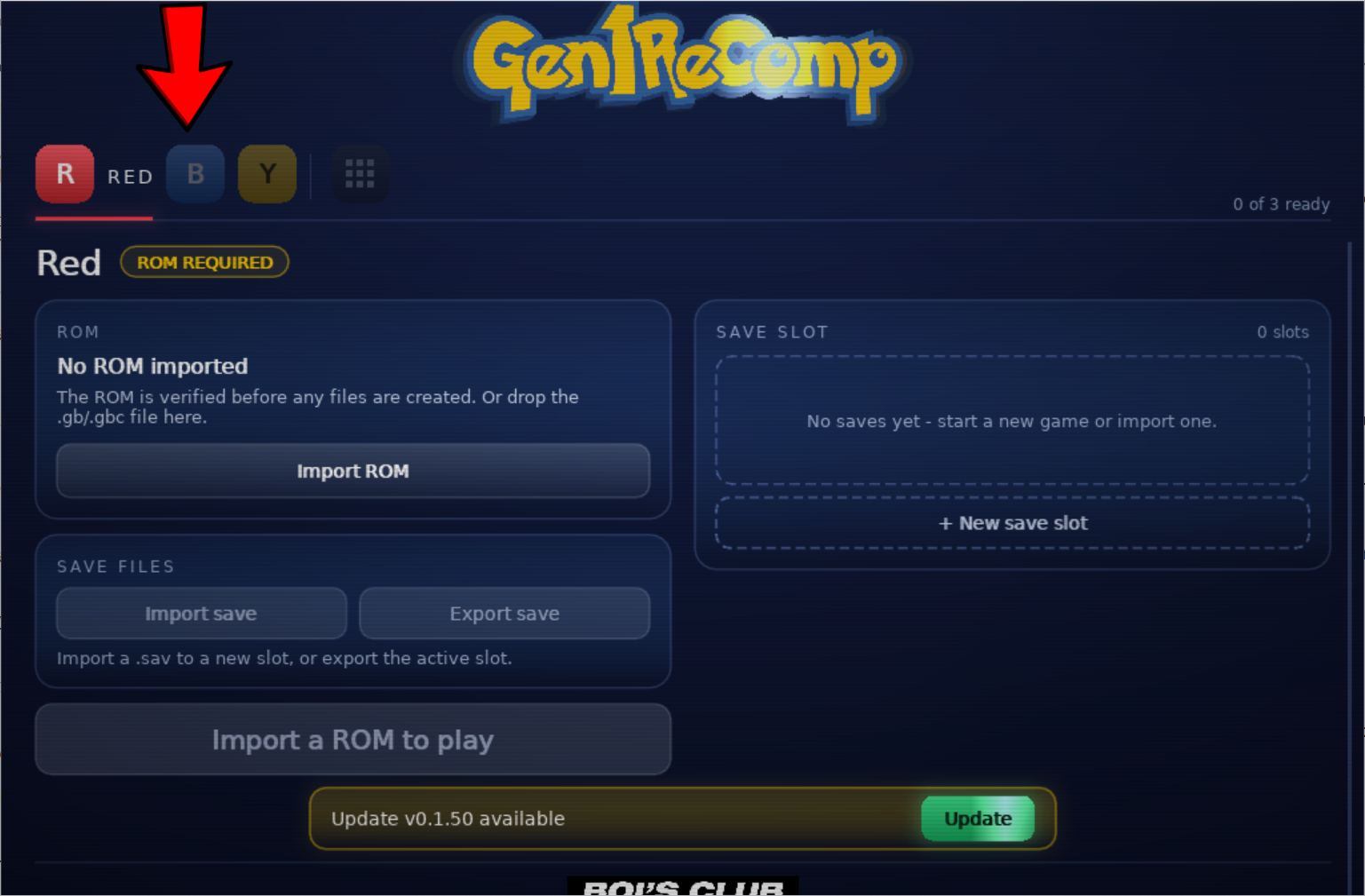
At the top of Gen1Recomp, you will see tabs for Red, Blue and Yellow. Select the tab that matches your game. For example, choose Red before importing a Pokemon Red ROM.
2.2 Click Import ROM
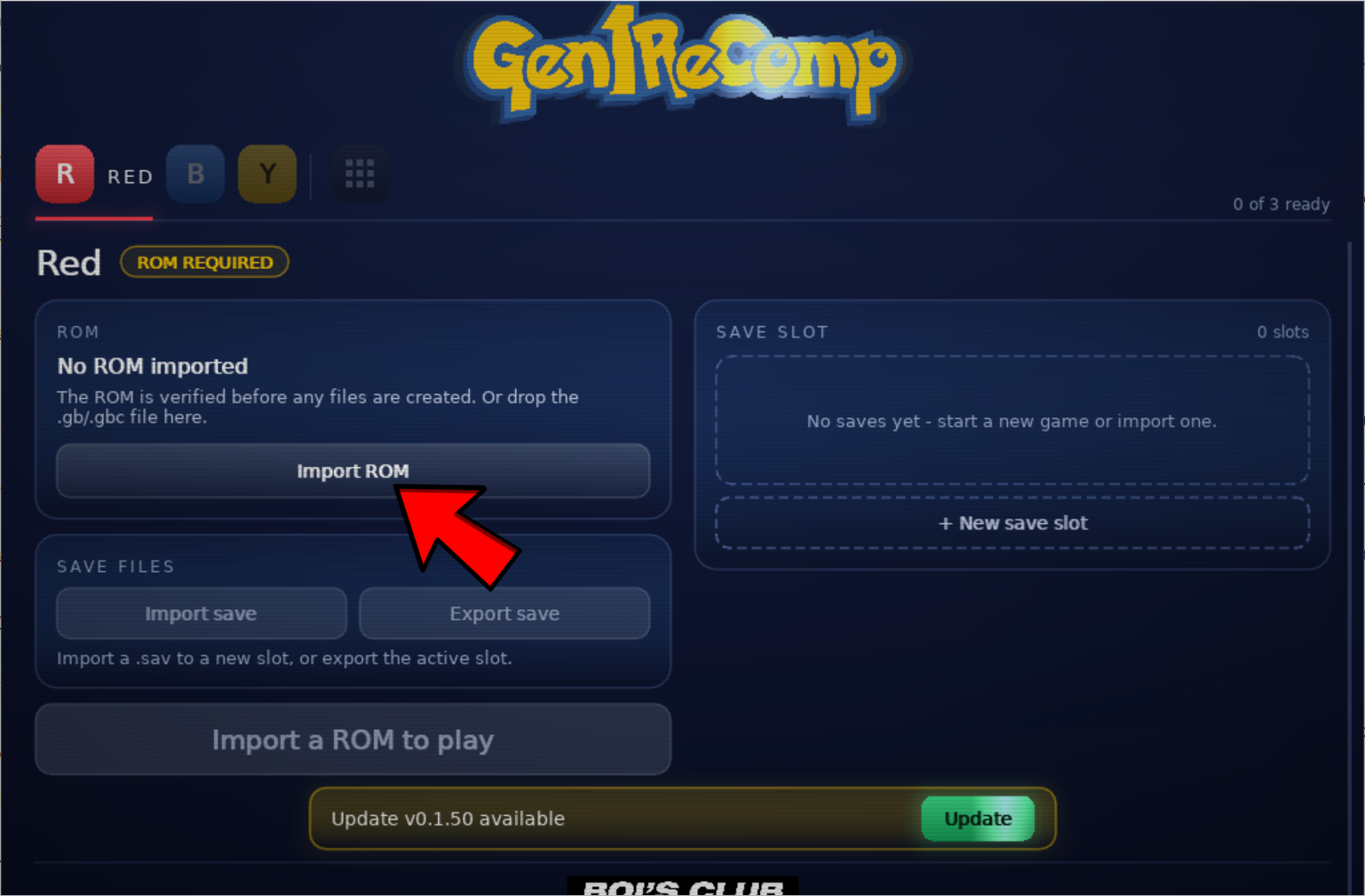
The selected game will show ROM REQUIRED. Click Import ROM, find your .gb or .gbc game file, and select it. If the file picker offers ZIP/7z archives, you can instead choose an archive containing one ROM. When archive import is unavailable on that build, extract the ROM first. Gen1Recomp will check the ROM and prepare the game data it needs.
If the ROM is rejected, check that you selected the matching game tab and that your file is a supported version. Simply renaming a different ROM will not make it compatible. See Supported Games for the current compatibility details.
2.3 Check for the Green Play Button
After a successful import, the status changes to GOOD TO GO and a green button appears near the bottom. Its name matches the selected game, such as Play Red. Click it once and make sure the normal game opens before installing the 3D mod.
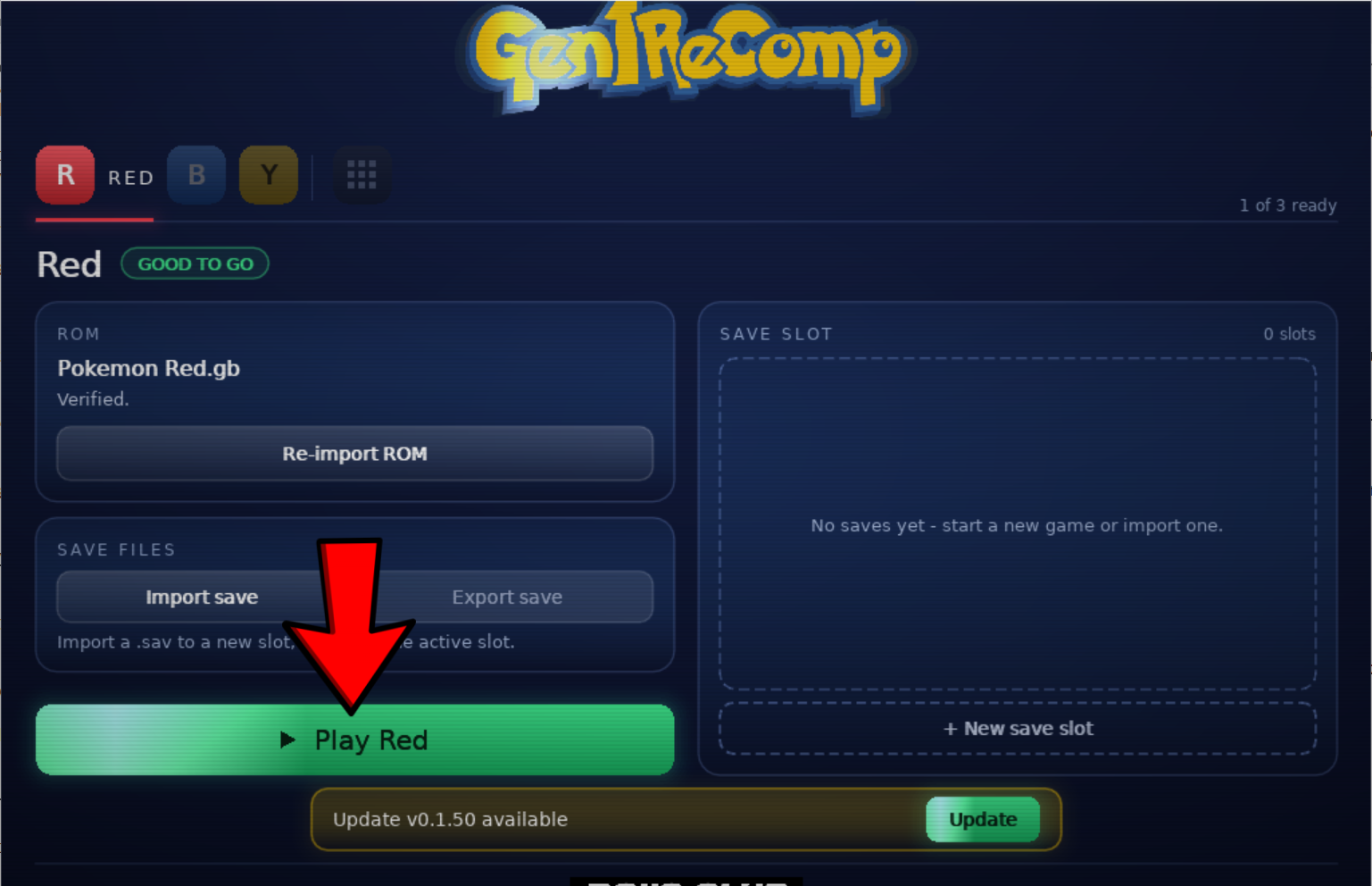
Your game is now ready in Gen1Recomp, but it may still look like the normal flat Game Boy or Game Boy Color view. The next step adds the optional 3D graphics.
Step 3: Add the VoxelMod to Gen1Recomp
3.1 Open the Mods Page
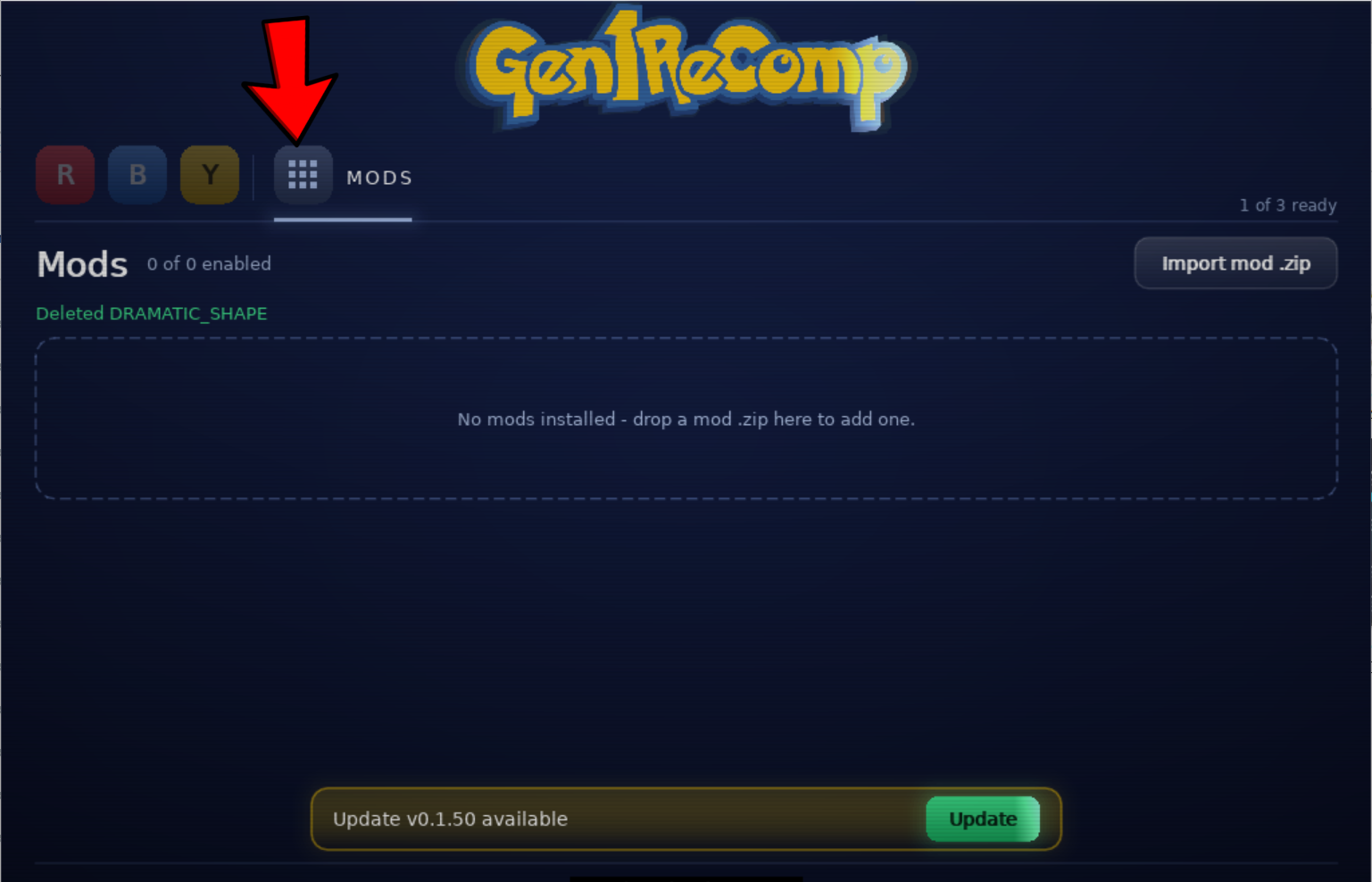
Return to the Gen1Recomp launcher. Click the four-dot Mods icon to the right of the Red, Blue and Yellow tabs. You can also press F10 on a desktop keyboard.
3.2 Click Import mod .zip
If you have not installed a mod before, this page will say that no mods are installed. Click Import mod .zip near the upper-right corner.
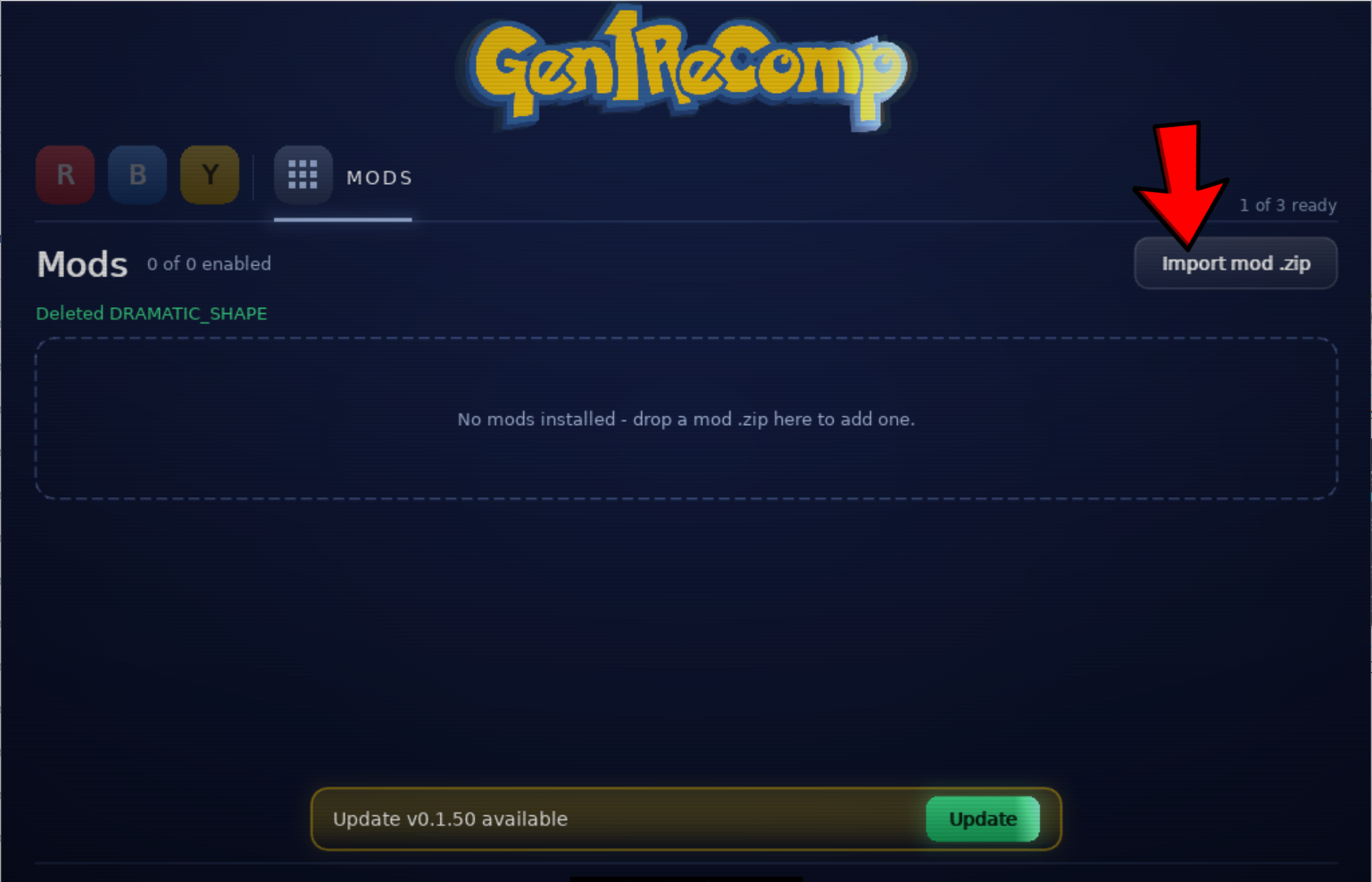
3.3 Select the VoxelMod ZIP
Find the VoxelMod ZIP you downloaded earlier, usually in your Downloads folder, and select it. Do not choose an extracted folder. When the import finishes, Dramatic Shape Voxel Mod will appear in the list.
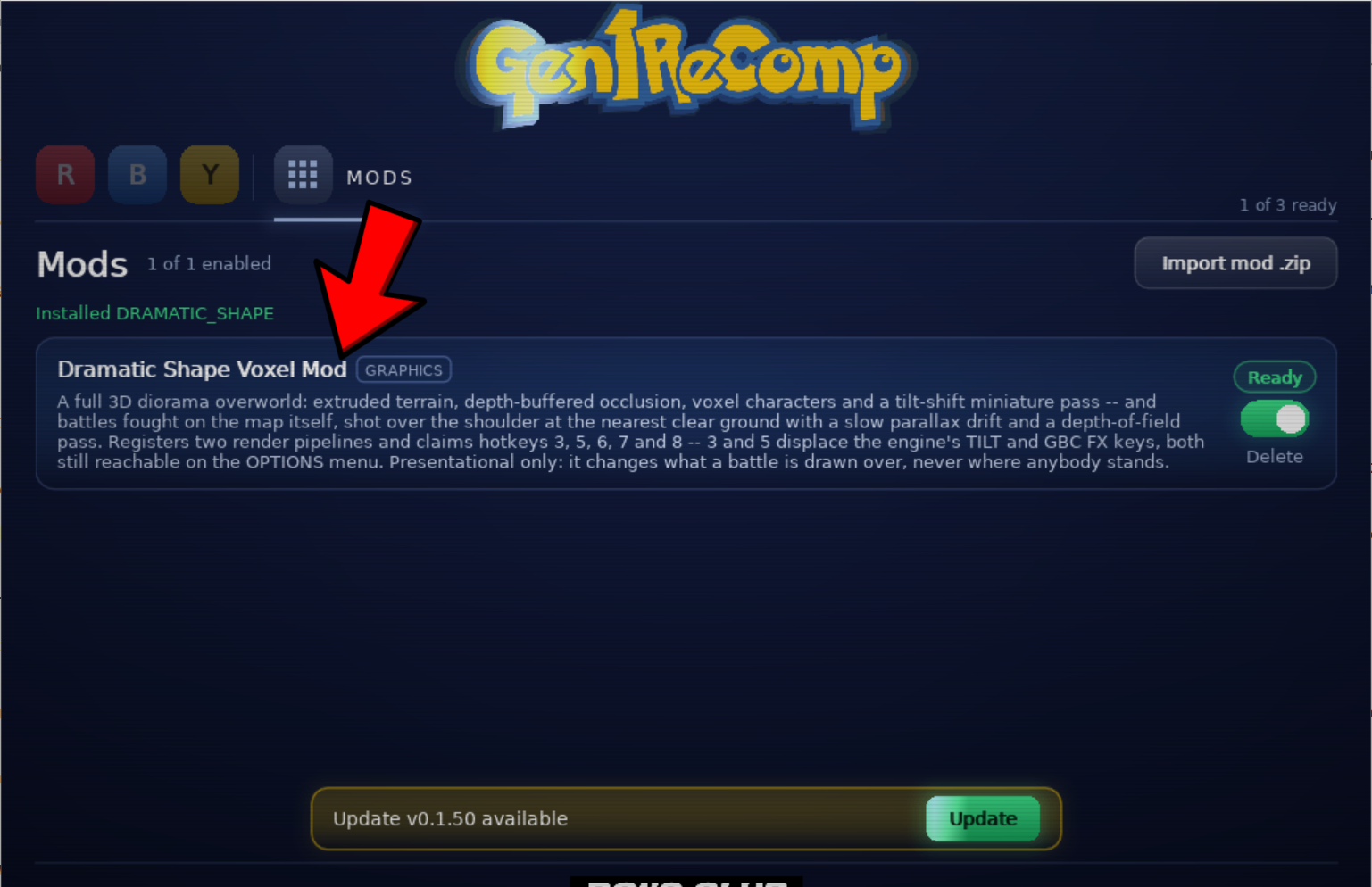
3.4 Make Sure the Mod Is Enabled
Look at the switch on the right side of the mod. It should be green, and the mod should show Ready. If the switch is off, click it once to enable the mod.
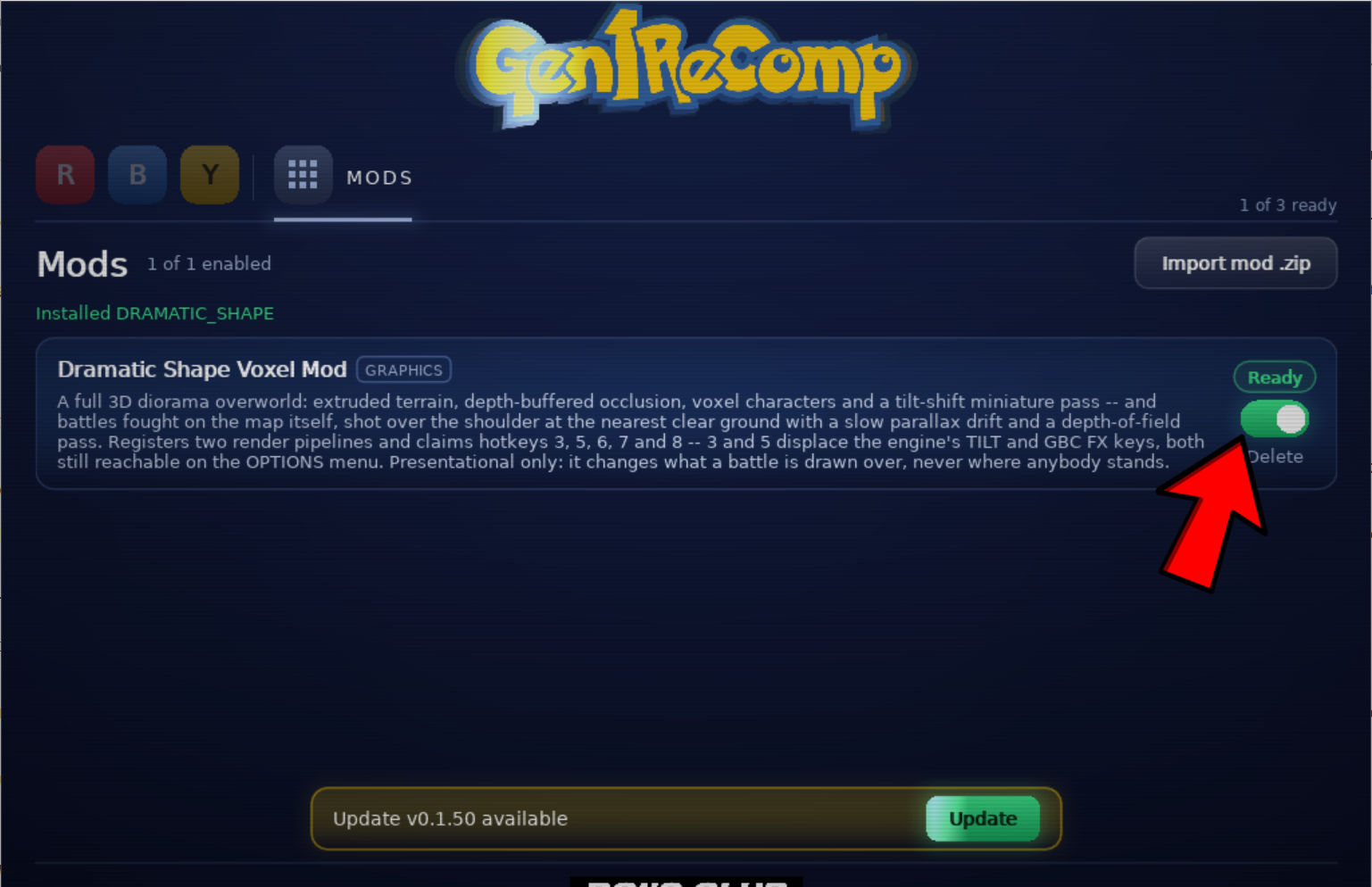
The VoxelMod is now installed. Go back to the Red, Blue or Yellow tab and click the green Play button for your game.
Step 4: Turn On and Adjust the 3D Effects
The game can still look flat when it first opens. While you are walking around in the game, use the number keys below to turn on and change the visual effects. You do not need to hold Ctrl, Alt or Command.
| Key or control | What it changes |
|---|---|
| 3 | Cycles through the available 3D camera angles. Press it more than once to try each view. |
| 5 | Turns voxel outlines on or off, giving the world a more block-like look. |
| 6 | Changes the tilt-shift blur, which can make the scene look like a small model. |
| 7 | Curves the world towards the horizon. |
| 8 | Switches the 3D battle presentation on or off. |
| 9 | Cycles VoxelMod's water effect between Full reflections, sky-only reflections and Off. |
| 2 | Cycles the base game's colour schemes. This is a Gen1Recomp display control, not a VoxelMod-only setting. |
| Q / E | Zooms the Voxel view in or out in VoxelMod 1.8.2. |
| Controller sticks | Control Voxel zoom when using a gamepad. |
Start by pressing 3 until you find a comfortable 3D angle. Then try 5, 6 and 7 one at a time so you can clearly see what each effect changes. The Keys and Hotkeys page lists the other Gen1Recomp controls.
Experimental First-Person Mode in VoxelMod 1.8.2
VoxelMod 1.8.2 includes 1ST as an experimental option in the in-game VOXEL row. The 3 shortcut continues to cycle the normal camera angles, so open the Options menu when you specifically want to select 1ST. In first-person mode, use the mouse to look around and use WASD to move relative to the camera. Left click acts as A and right click acts as B. Save before testing this mode, and return VOXEL to a normal angle if you have movement or performance problems.
Third-Person Mode and Battle Camera
VoxelMod 1.8.2 adds a third-person view. It also lets you adjust the camera angle and zoom during battles, then keeps that choice for later battles. Use Q/E with a keyboard or the controller sticks to change Voxel zoom.
Render Distance
VoxelMod 1.8.2 adds render-distance options. A shorter distance can reduce how much of the 3D environment is drawn, which may help on less powerful devices. Change one graphics option at a time and compare the result on your own device; the release does not promise a specific performance gain.
Type A, Type B and Stadium Battles
VoxelMod 1.8.2 provides two 3D battle presentations. Type A keeps the battle connected to the map presentation, while Type B places it in a separate void. It also supports experimental Pokemon Stadium models for users who supply a compatible Pokemon Stadium 1.0 ROM. The 1.8 series added shiny and shiny Stadium-model support, optional throwing mechanics and further environment fixes; Stadium support remains experimental.
Experimental PC VR Mode
VoxelMod 1.8.2 also supports an experimental PC VR mode through SteamVR. The official release notes say it was tested with Virtual Desktop and a Quest 3; standalone VR is not supported. Start SteamVR first, launch the game, then change VR to On in the Options menu. The 1.7 series includes diorama VR modes and corrected battle rotations in VR; smooth turning remains available as an alternative to snap turning. Back up your save and confirm that ordinary desktop play works before testing VR.
Quick Fixes if Something Does Not Work
- No 3D effect appears: check that the VoxelMod switch is green, return to the game, and press 3 while your character is in the overworld.
- The mod ZIP will not import: make sure you selected the original VoxelMod ZIP and did not extract it first.
- The ROM will not import: confirm that the game tab matches the ROM. If a ZIP or 7z is not offered or cannot be opened on your build, extract its .gb or .gbc file and import that raw ROM.
- The game becomes slow: turn off the blur with 6, turn off voxel outlines with 5, and use a less extreme 3D angle.
- Another graphics mod causes visual problems: temporarily disable the other mod and test VoxelMod by itself.
For version-specific problems, check Known Issues and Platforms and Requirements.
Updating Gen1Recomp or VoxelMod
Back up saves before changing versions. Update one project at a time, confirm that the base game still launches, then re-enable and test VoxelMod. Read both release notes because a new base version, mod version or mod conflict can change the result.