Gen1Recomp and VoxelMod Setup for Android
This guide shows the complete Android process for importing Pokemon Red, Blue or Yellow into Gen1Recomp, adding VoxelMod and turning on the 3D view. The first three steps are similar to the Windows and Mac setup, but Android uses an APK and touch controls.
Step 1: Download the Android Files
Open the Gen1Recomp download page and get these three items:
- Gen1Recomp for Android: download the official Android APK for version 0.3.96.
- DramaticShapeVoxelMod: download a VoxelMod ZIP from the preserved version archive. Keep this file zipped because Gen1Recomp imports the ZIP directly.
- Your compatible game file: use your own legally obtained Pokemon Red, Blue or Yellow ROM in .gb or .gbc format. A raw ROM works across builds. ZIP/7z import is available only when the Android build and file picker offer archive support.
Install the Gen1Recomp APK
Open the downloaded APK and follow Android's installation prompt. If Android asks whether the browser or file manager may install this app, review the prompt and allow only the source you used for the official GitHub download. You do not need to disable Play Protect or other device security.
After installation, open Gen1Recomp from your app list.
Step 2: Import Pokemon Red, Blue or Yellow
2.1 Choose the Correct Game Tab
At the top of Gen1Recomp, tap Red, Blue or Yellow. Choose the tab that matches the ROM you are about to import. For example, select Red before importing Pokemon Red.
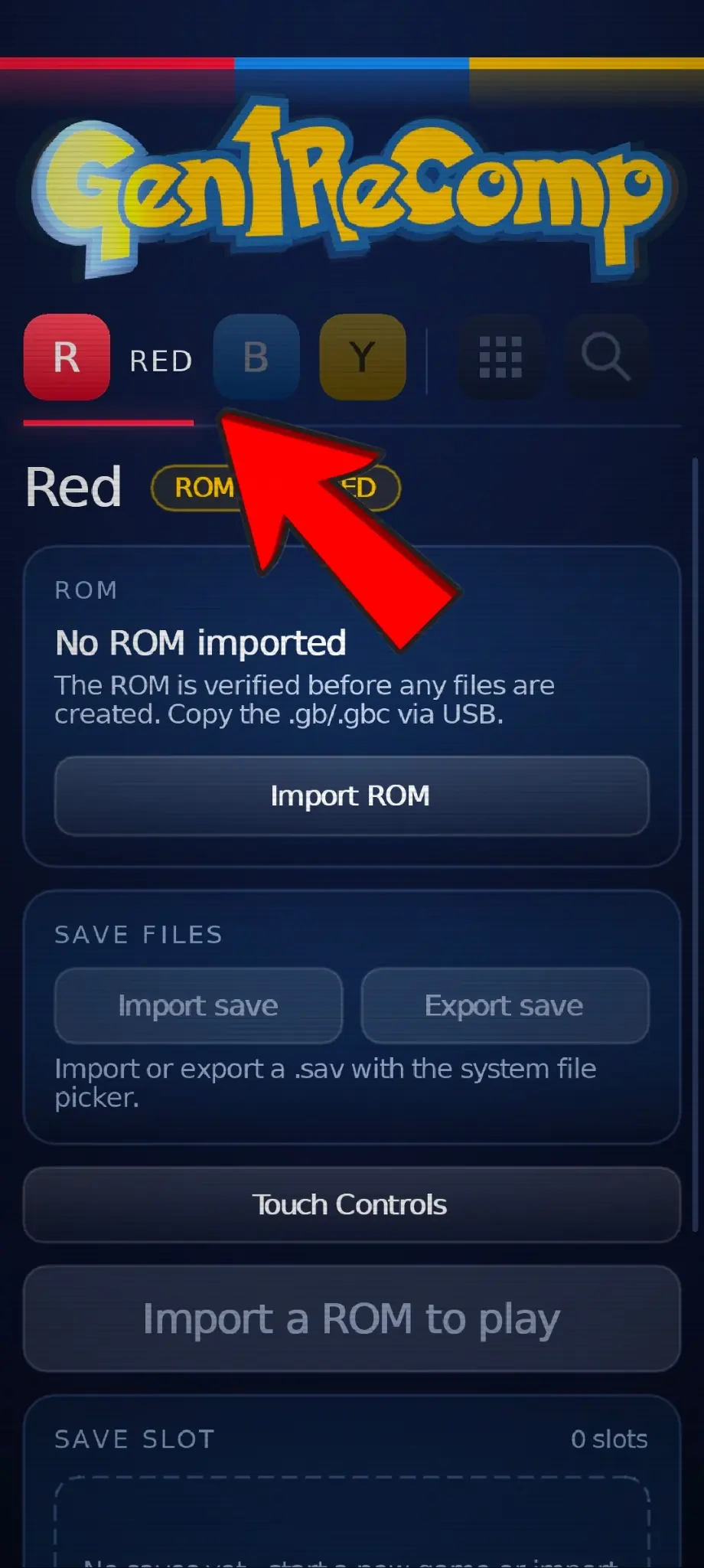
2.2 Tap Import ROM
The selected tab will show ROM REQUIRED. Tap Import ROM, find your .gb or .gbc file in Android's file picker and select it.
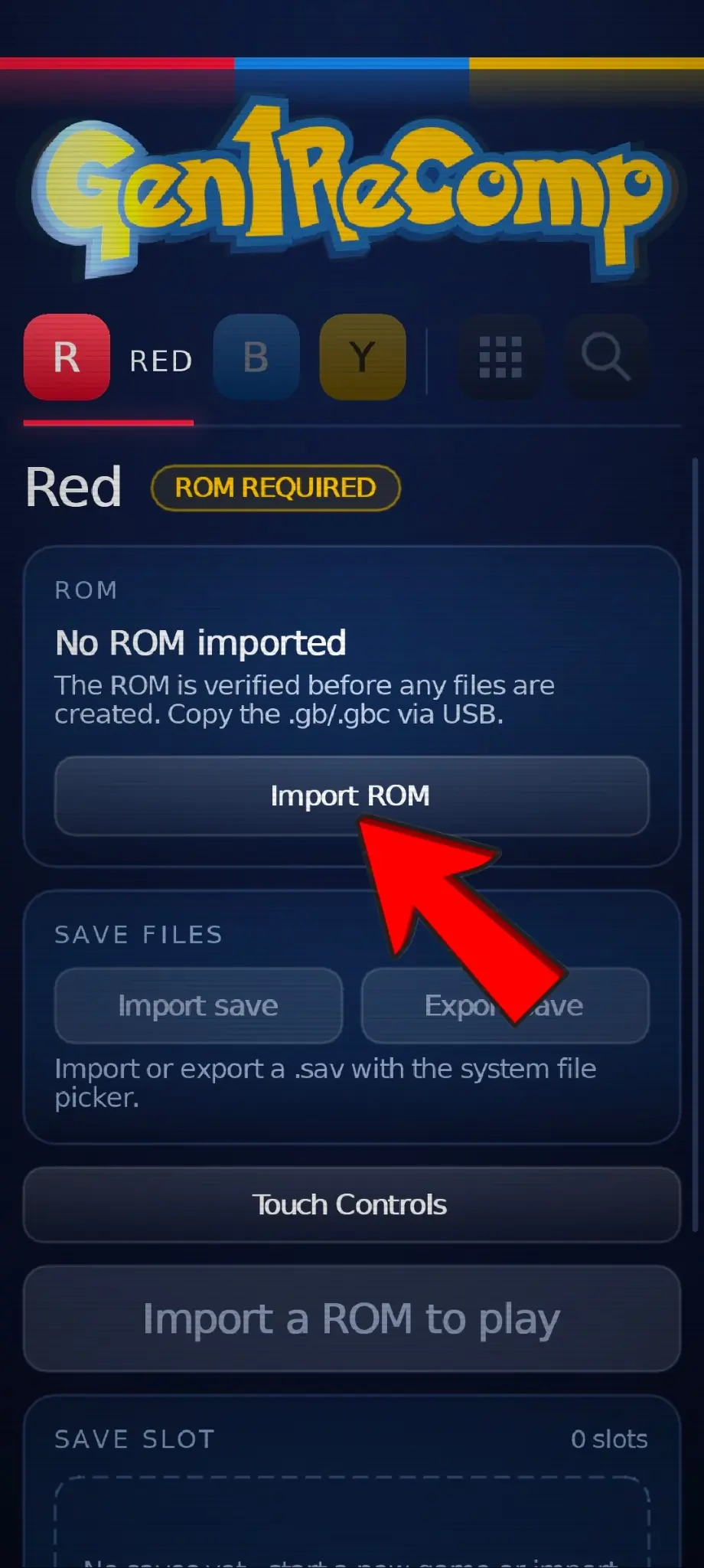
Gen1Recomp will check the file and prepare the game data. If the ROM is rejected, make sure the selected game tab matches the file and check the supported game versions. Renaming an unsupported ROM will not make it compatible.
2.3 Tap the Green Play Button
After a successful import, the status changes to GOOD TO GO and a green button appears, such as Play Red. Tap it once to confirm that the base game opens normally.
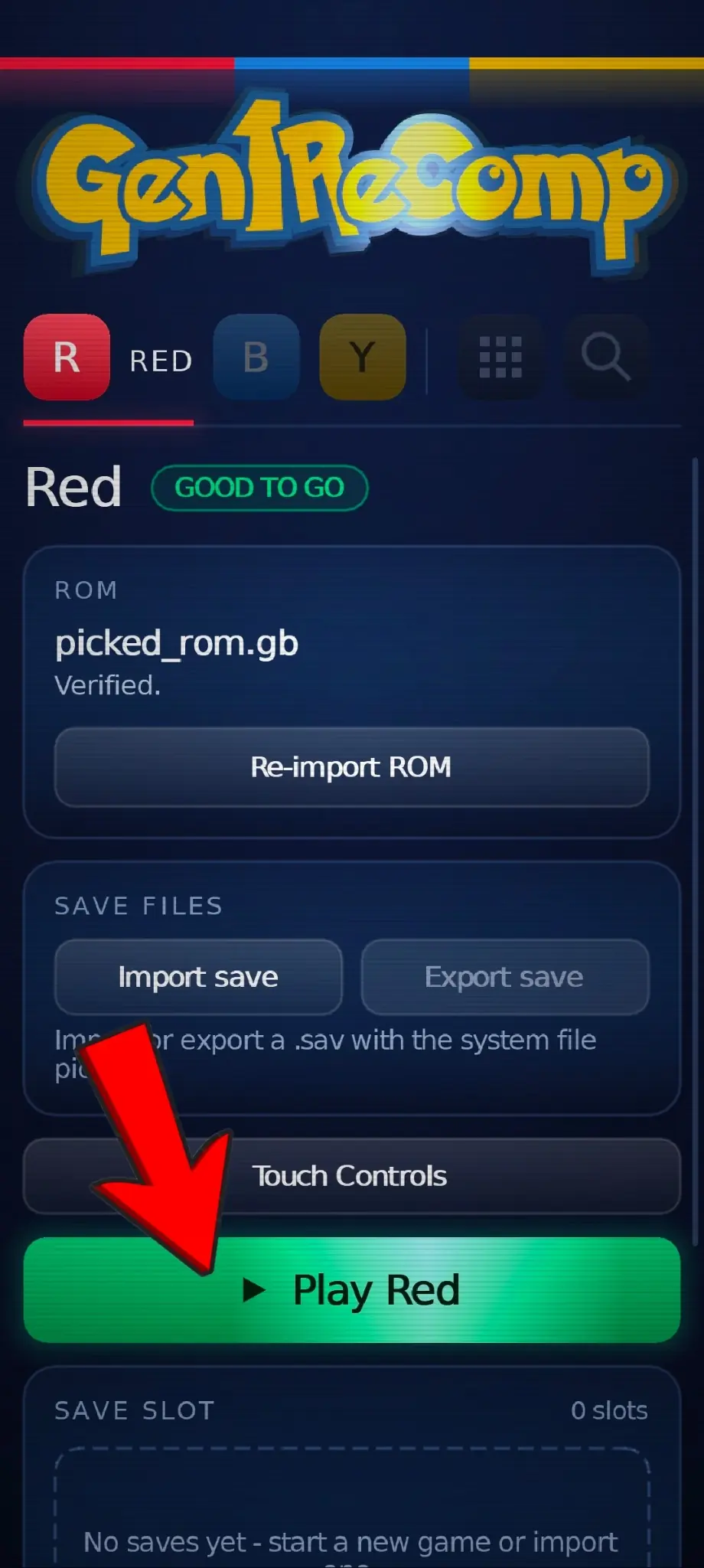
The game may still look flat at this point. That is normal because VoxelMod has not been added yet.
Step 3: Add VoxelMod to Gen1Recomp
3.1 Open the Mods Page
Return to the Gen1Recomp launcher and tap the nine-dot Mods icon to the right of the Red, Blue and Yellow tabs.
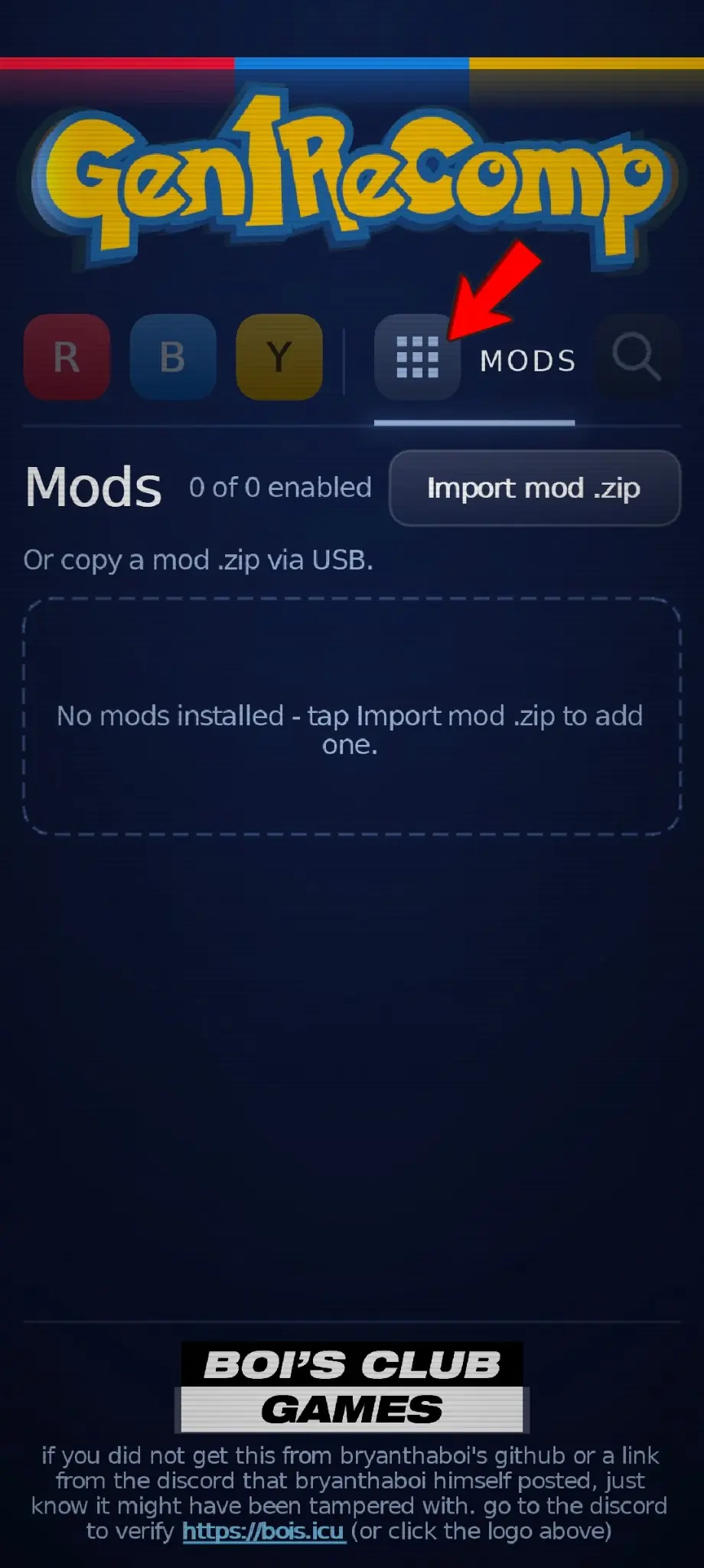
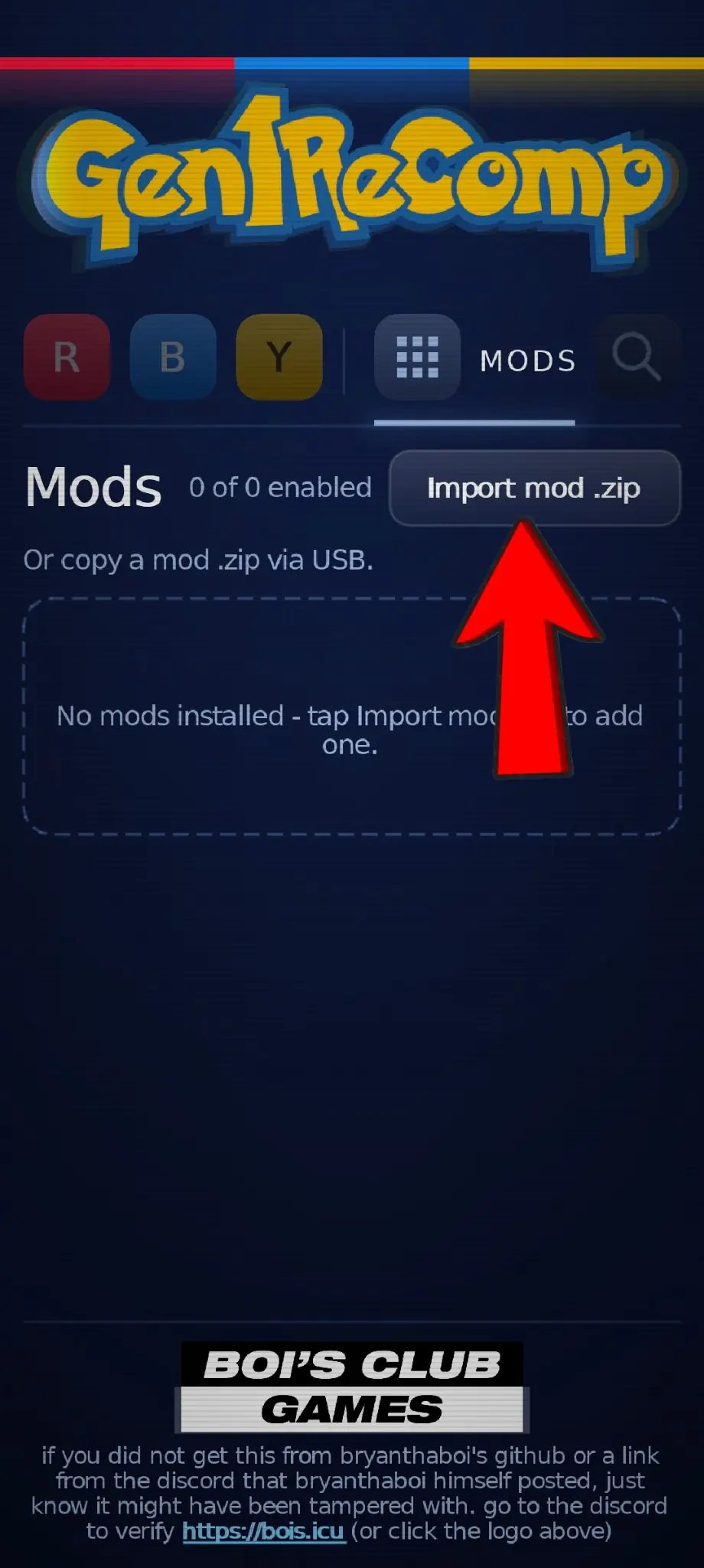
3.2 Tap Import mod .zip
On a fresh installation, the page says that no mods are installed. Tap Import mod .zip near the top of the page.
3.3 Select the VoxelMod ZIP
Find the VoxelMod ZIP, usually in your Downloads folder, and select it. Do not extract the mod first. When the import finishes, Dramatic Shape Voxel Mod appears in the list.
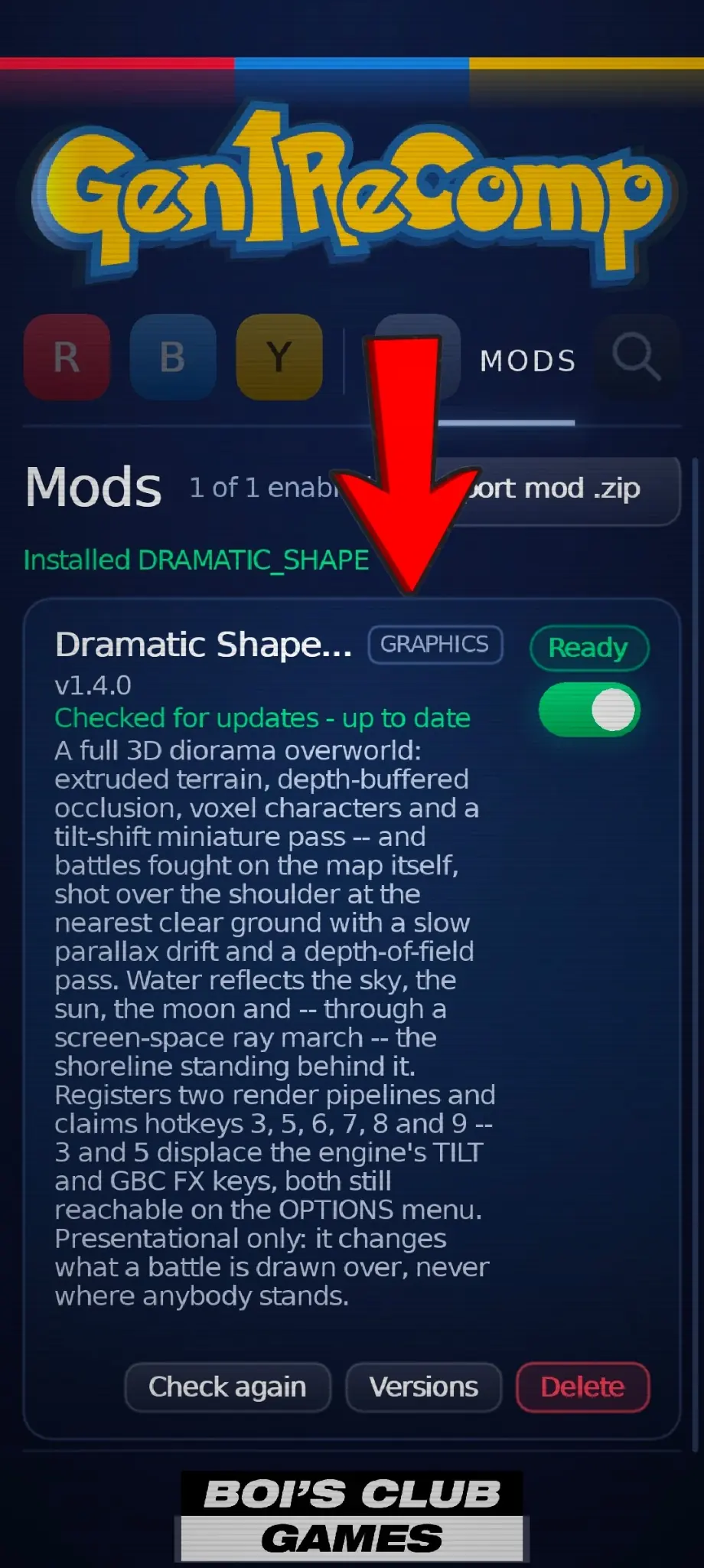
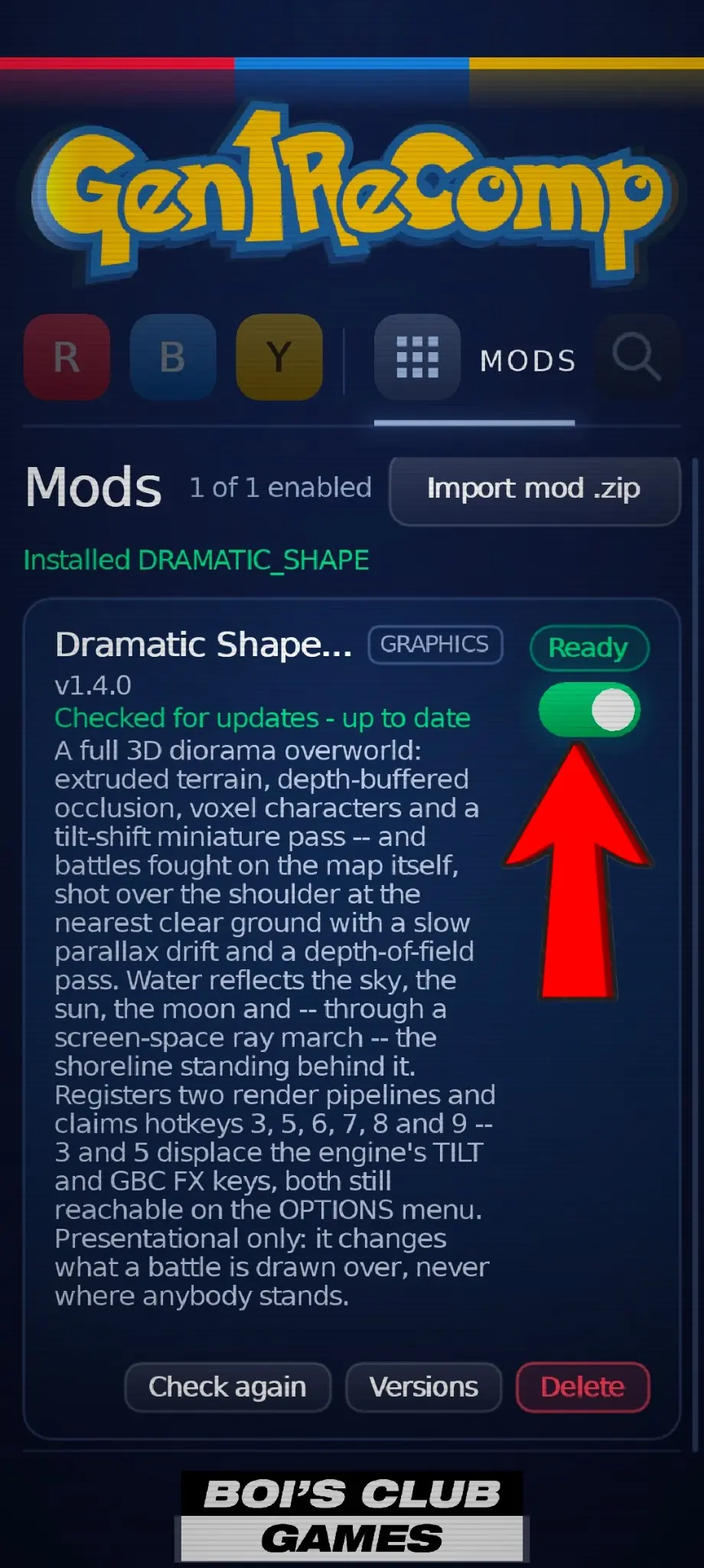
3.4 Make Sure VoxelMod Is Enabled
The switch on the right side of the mod should be green, and its status should show Ready. Tap the switch if it is off.
Go back to your game tab and tap the green Play button again.
Step 4: Turn On the 3D View on Android
Android does not provide the keyboard shortcuts used on Windows and Mac. To change the 3D effects on Android, use the touch controls to open the game's Options menu and adjust the Voxel settings there.
4.1 Open the Options Menu
While the game is running, tap the plus-shaped Start button near the bottom of the screen.
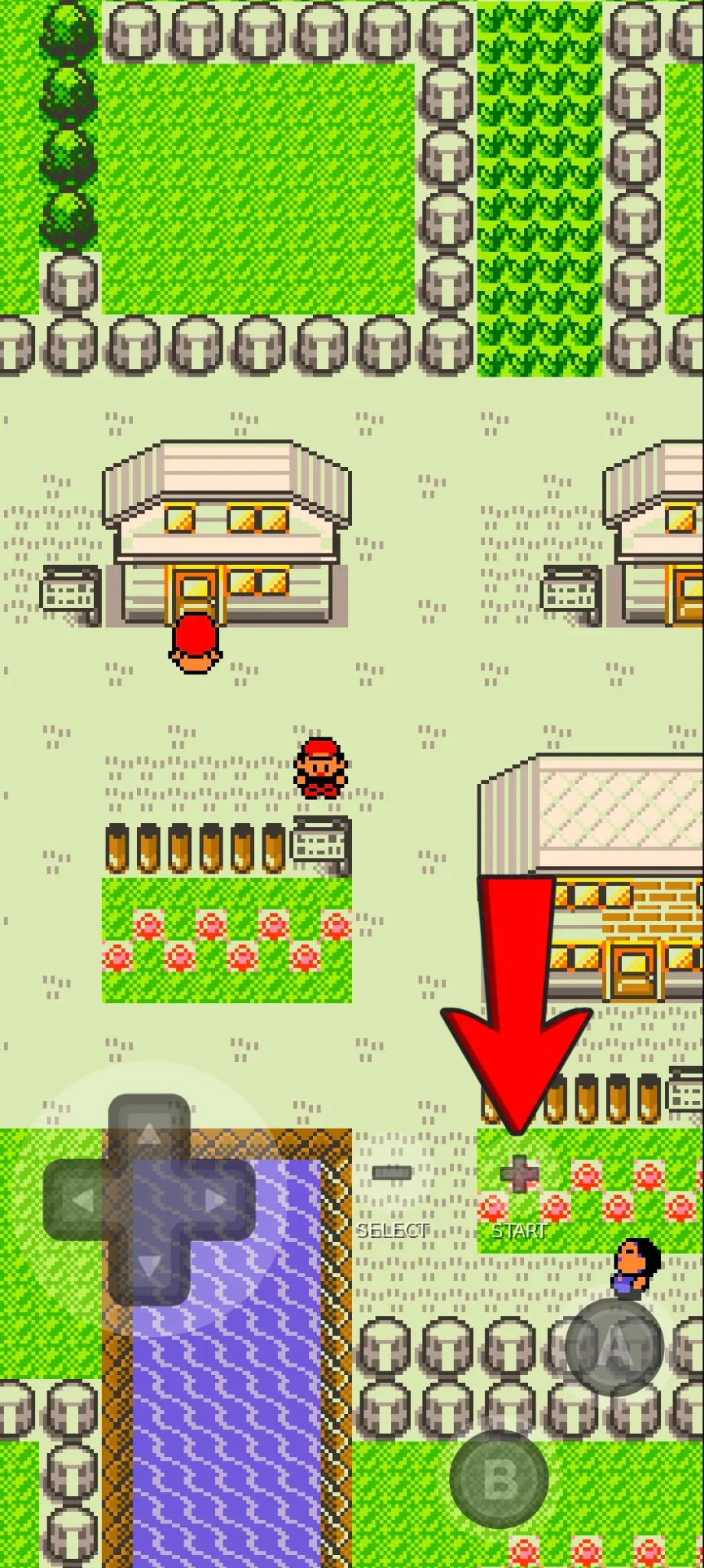
After the menu opens, use the touch D-pad to move down until OPTION is highlighted. Then tap the A button to open the Options screen.
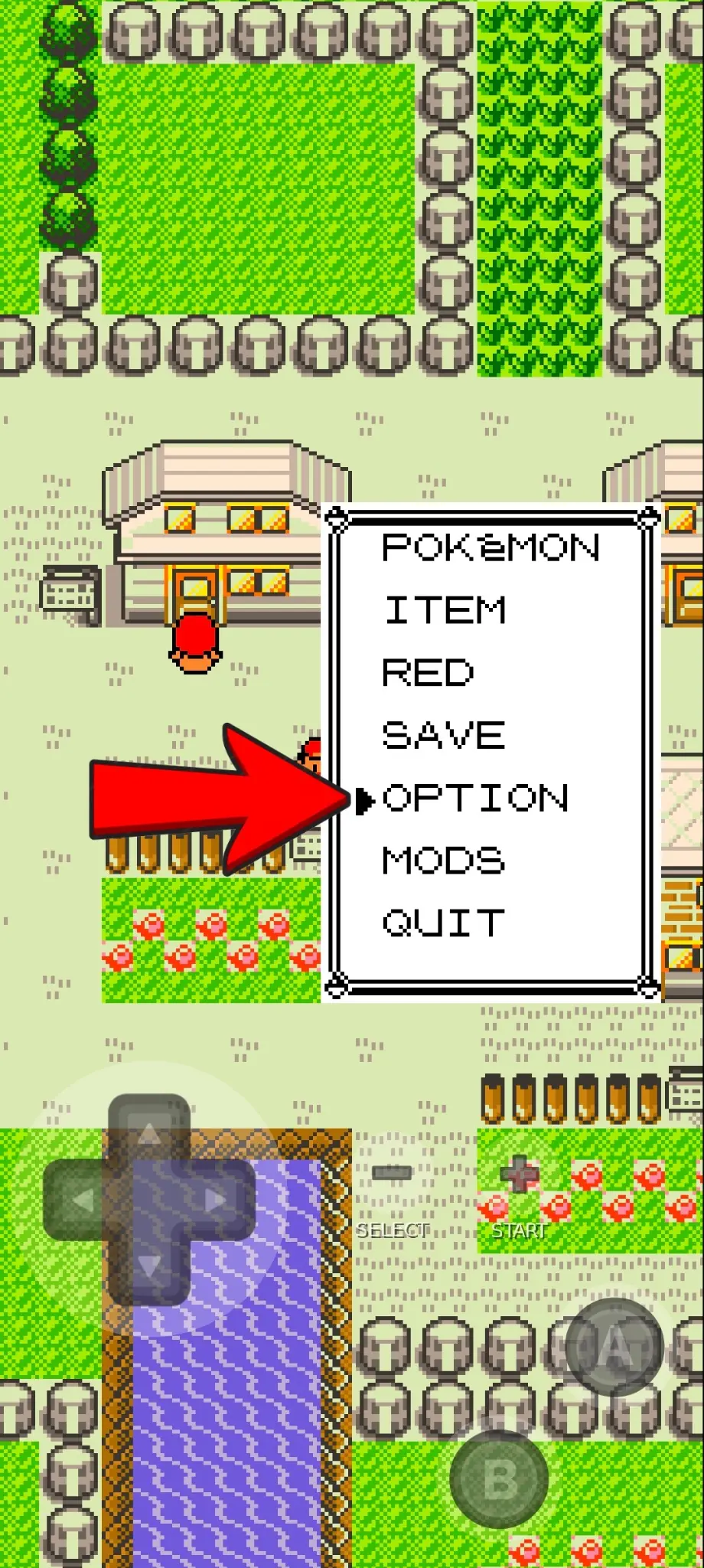
4.2 Change the Voxel Setting
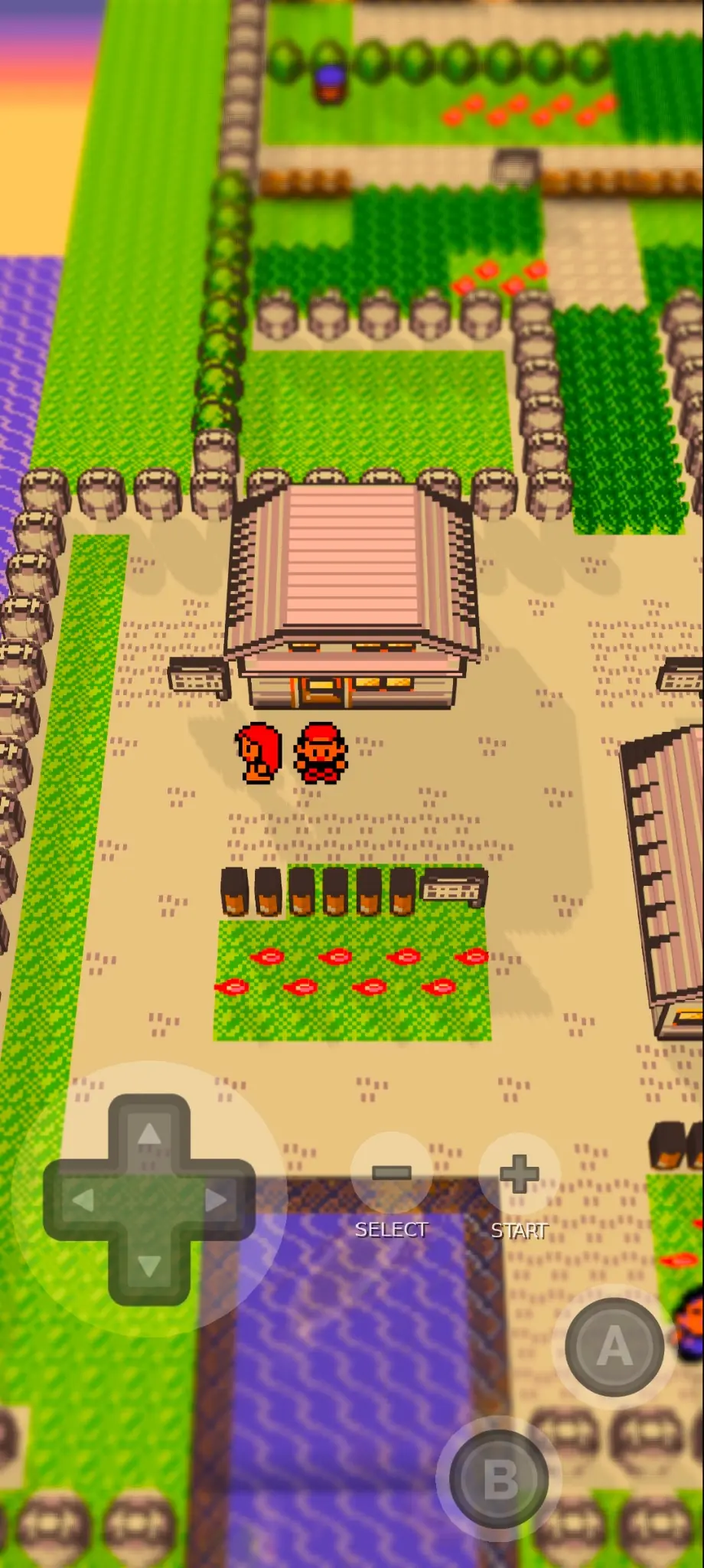
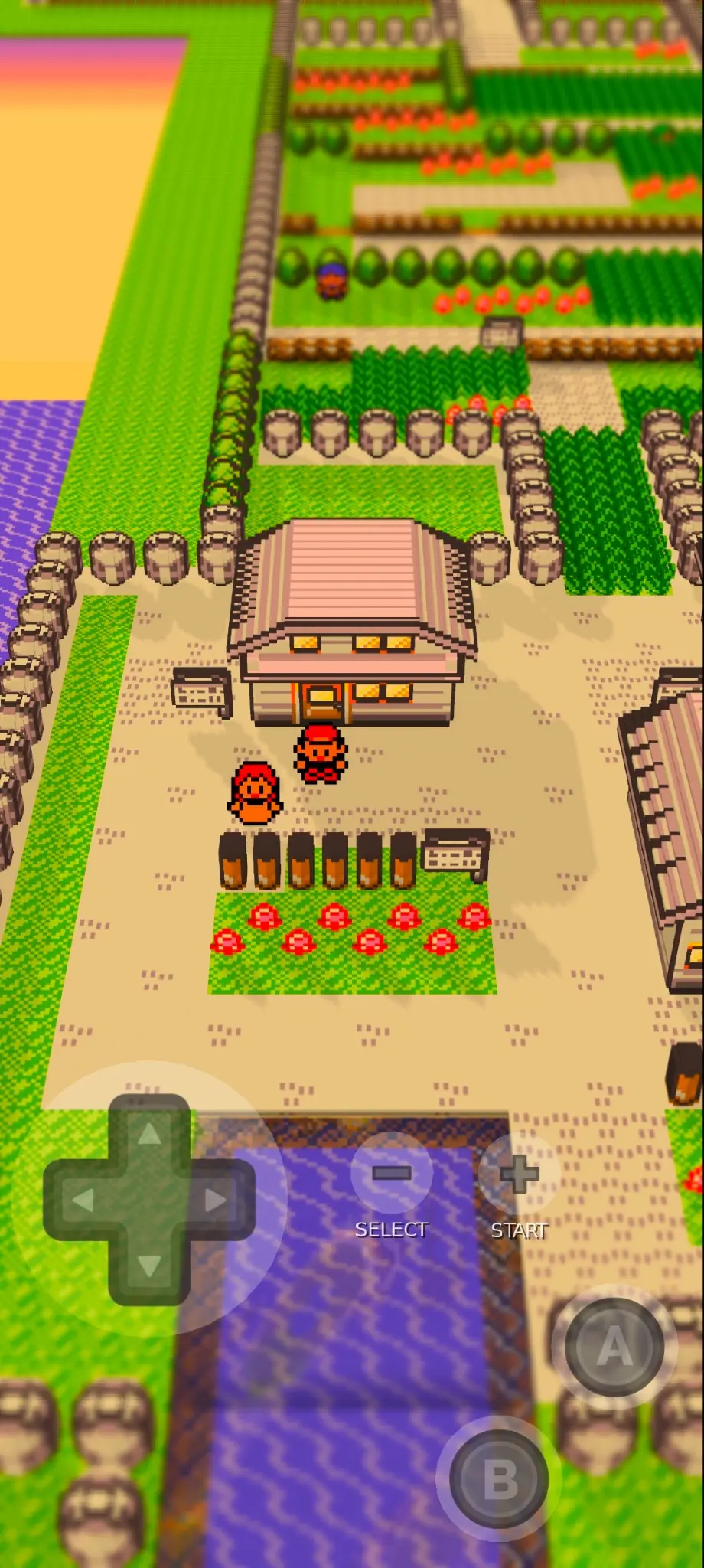
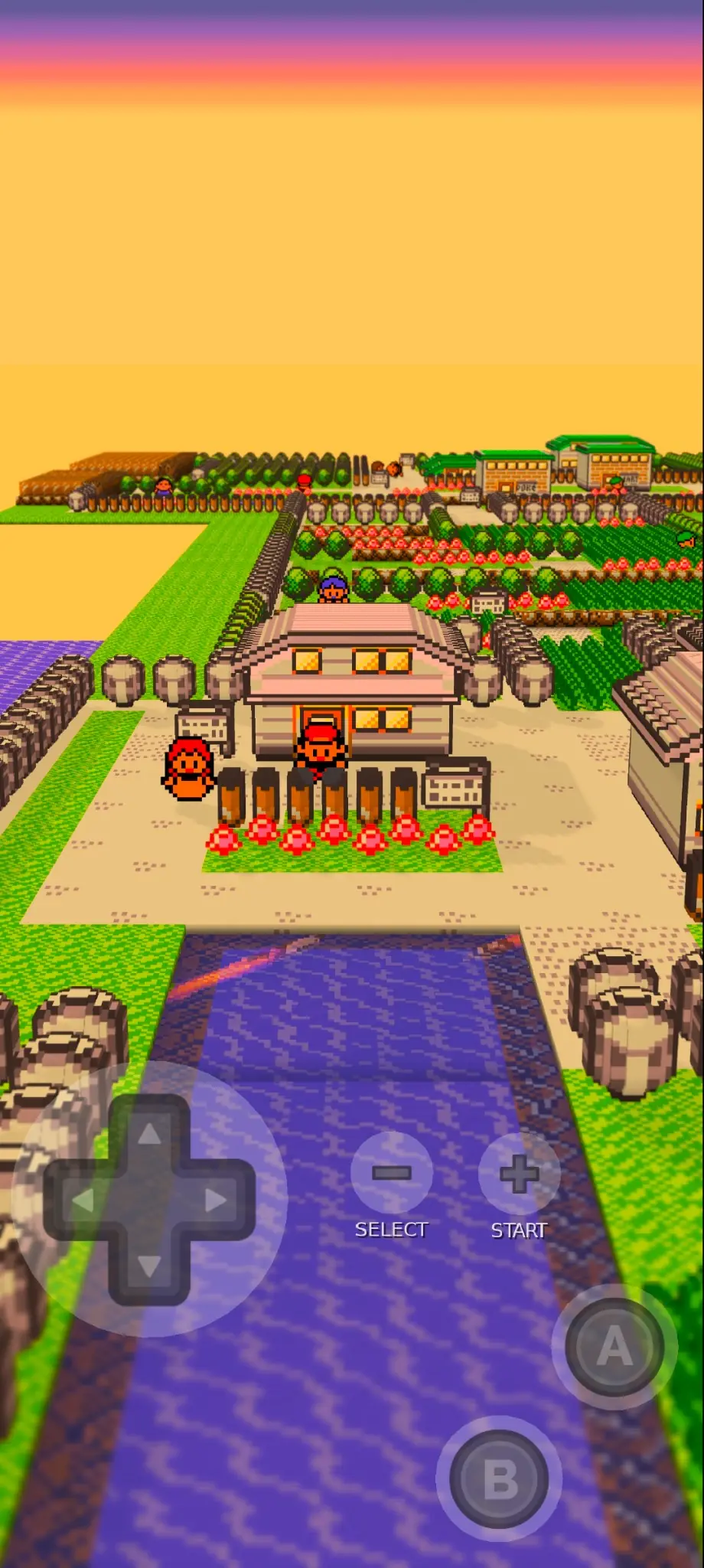
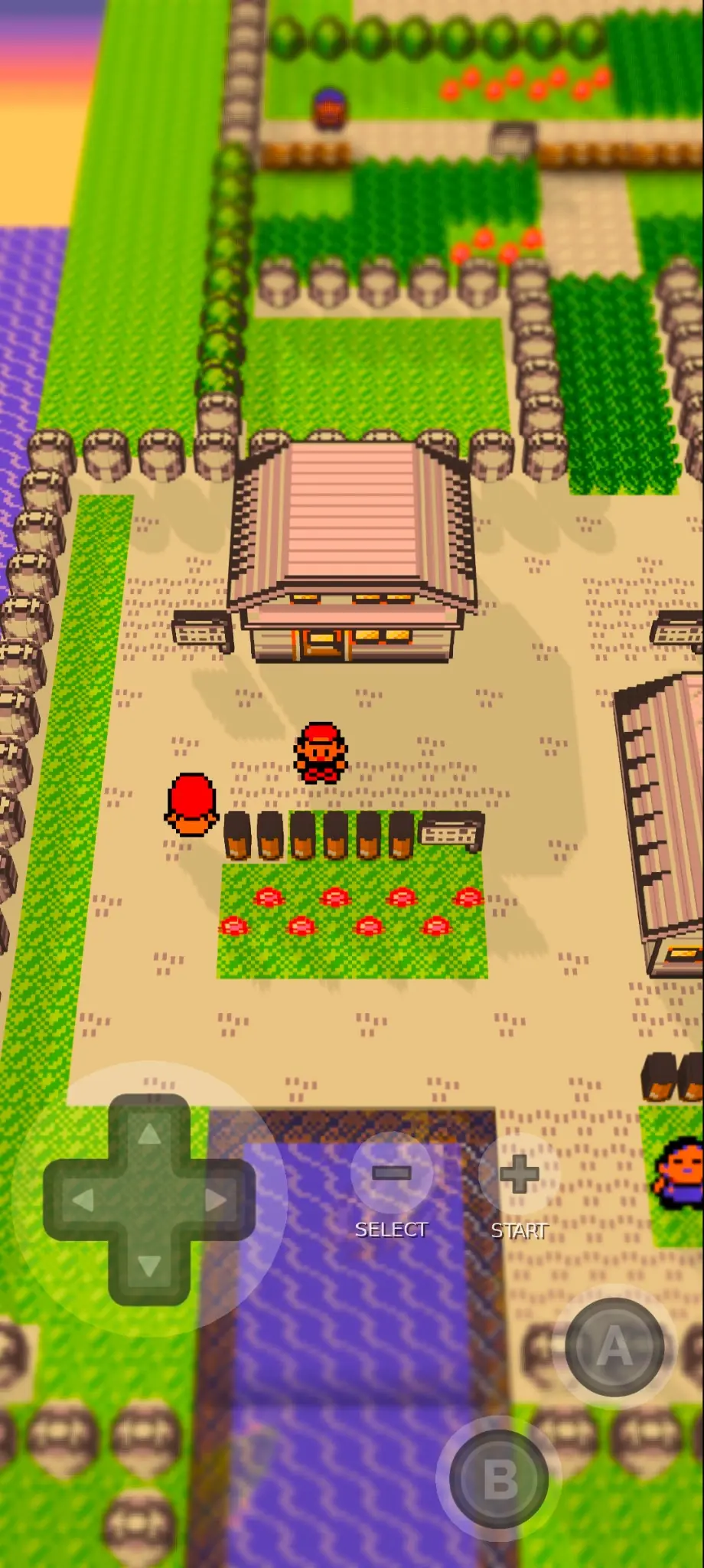
Move down to VOXEL and press the right direction on the touch D-pad. The available choices include Off, 15, 35, 50, 75, Full and the experimental 1ST first-person mode.
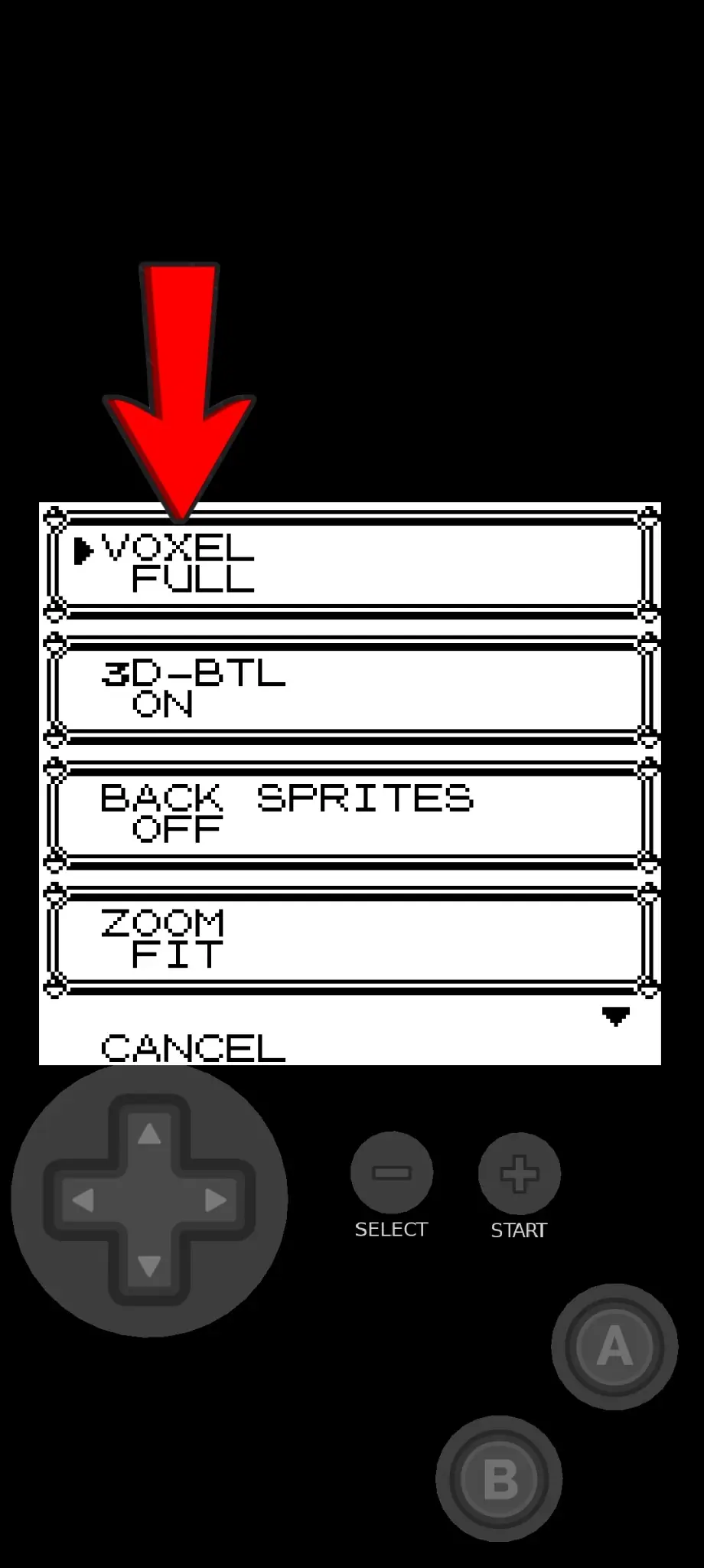
- Off keeps the classic flat view.
- 15, 35, 50, 75 and Full are ready-made 3D view presets. Choosing any of them applies the Voxel presentation automatically.
- 1ST changes the view and movement to experimental first-person mode. Drag across an open part of the screen to look around and use the touch D-pad to move.
Start with Full for normal 3D play. If you prefer a different camera angle, try 15, 35, 50 and 75 one at a time. Test 1ST only after the normal view is working, save first, and switch back to another Voxel choice if first-person movement or performance does not feel right.
VoxelMod 1.8.2 retains third-person mode and battle camera control. Pinch in or out on the touchscreen to adjust the Voxel zoom. Your selected battle angle and zoom are kept for later battles.
Version 1.8.2 also provides render-distance options as well as Type A and Type B 3D battles. Type B uses a separate void rather than the current map as the battle scene. Pokemon Stadium model support is available only with a compatible Stadium 1.0 ROM and is explicitly experimental. The 1.8 series added shiny support, optional throwing mechanics and further environment fixes.
Compare the Android Voxel Settings
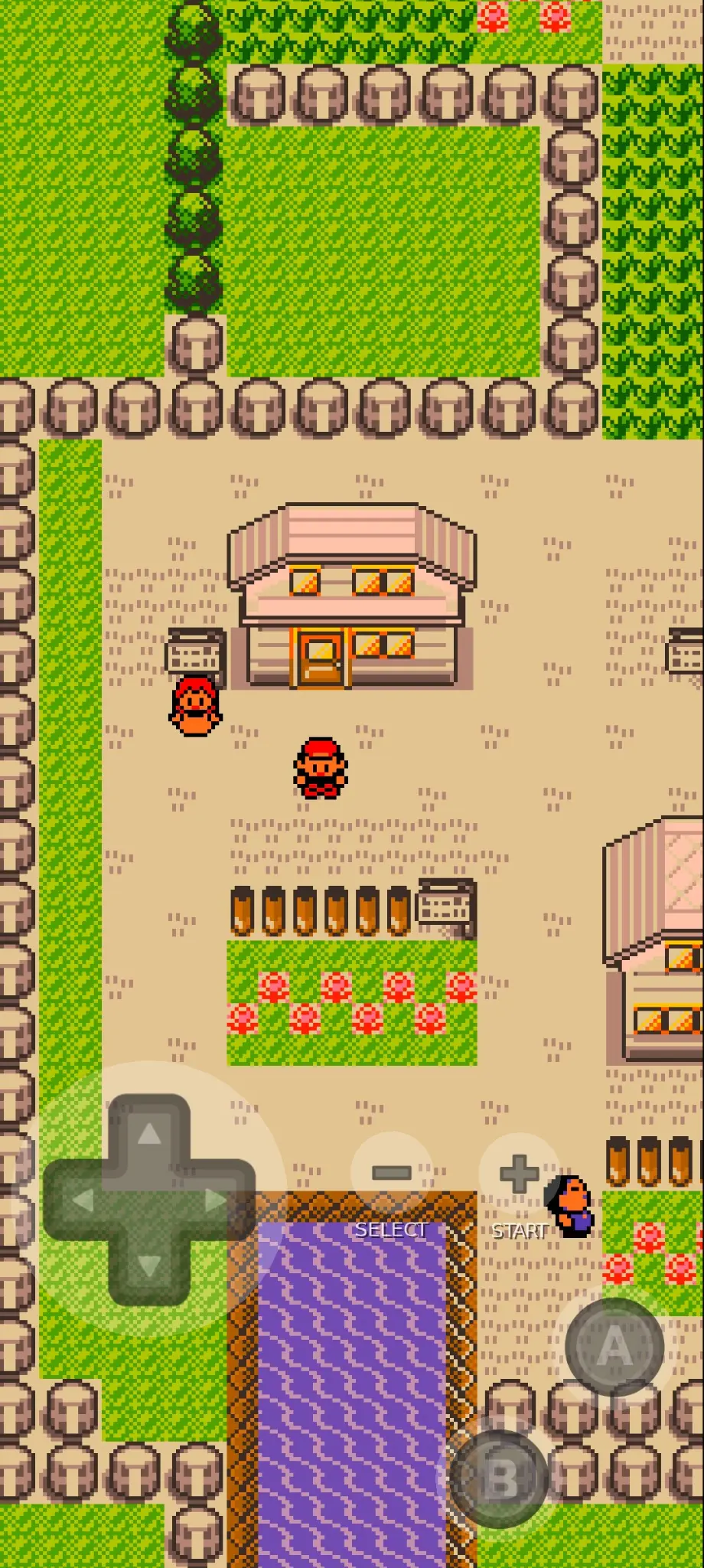
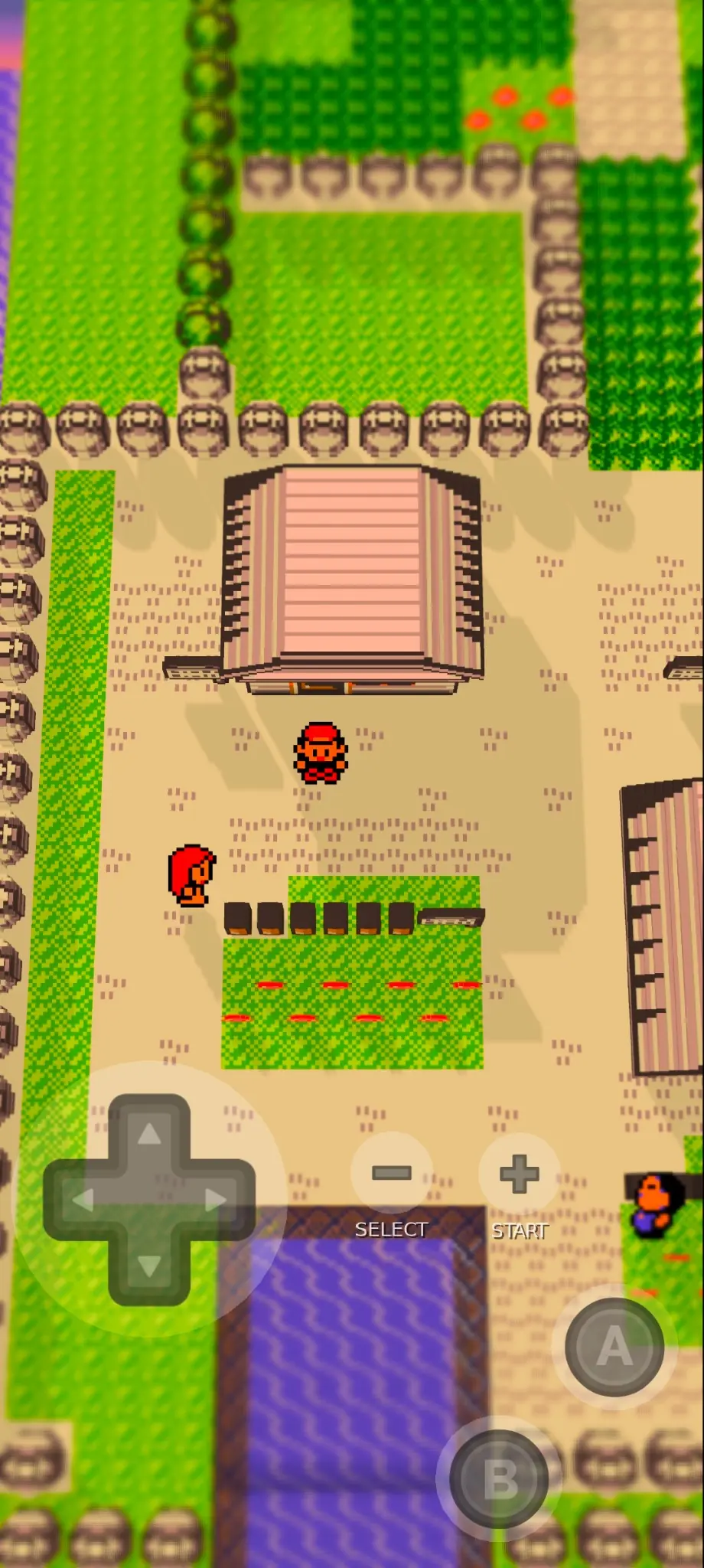
The screenshots below show how the same area changes with each Voxel choice. Every image is shown in full so you can compare the camera depth, map angle and visible distance.
Other Android Settings Worth Checking
| Setting | What it changes | Suggested starting point |
|---|---|---|
| Color | Changes the game's overall colour style, including classic and more colourful Game Boy Color-style choices. | Try each choice and keep the one you prefer. |
| 3D-BTL | Draws battles using the 3D presentation. | Turn it On if you want 3D battles. |
| Zoom | Moves the view closer or farther away. | Start with Fit, then adjust for your screen. |
| Max FPS | Limits the maximum frame rate. A lower limit can reduce the load on slower devices. | Keep the default first; lower it only if the game struggles. |
| Game Speed | Changes how fast the game runs. | Use normal speed until the rest of the setup works correctly. |
| Performance | Provides Low, Auto, High and Balanced modes. | Start with Auto or Balanced. Use Low on a weaker phone; choose High only if your device runs it smoothly. |
| Render distance | Controls how far the VoxelMod environment is drawn. | Reduce it if a longer view causes slowdowns on your device. |
Change one setting at a time and play for a minute before changing another. This makes it easier to see which option improves or slows down your game.
Quick Fixes for Android Problems
- The game still looks flat: open Options and make sure VOXEL is not set to Off.
- VoxelMod is not listed: import the original mod ZIP again. Do not select an extracted folder.
- VoxelMod is listed but has no effect: make sure its switch is green, then close and reopen the game.
- Import ROM cannot see the game: if the archive is not offered or cannot be opened, extract its .gb or .gbc file and select that raw ROM.
- The game is slow: try Performance Auto, Balanced or Low, reduce Max FPS, and test with fewer extra effects.
- The APK will not install: return to the official download, review Android's installation prompt and make sure your device allows installation from that chosen source. Do not disable device security tools.
Check Platforms and Requirements and Known Issues if the problem continues.
Updating Gen1Recomp or VoxelMod
Back up saves before changing versions. Update one project at a time, confirm that the base game still launches, then re-enable and test VoxelMod. Read both release notes because a new base version, mod version or mod conflict can change the result.
Android Guide FAQs
Does Gen1Recomp work on every Android phone?
No universal compatibility is guaranteed. The official APK supports Android, but performance and graphics can differ depending on the device, Android version and GPU.
Should I extract the VoxelMod ZIP on Android?
No. Keep the VoxelMod ZIP compressed and import that ZIP from the Gen1Recomp Mods page.
Why is Pokemon Red, Blue or Yellow still flat after adding VoxelMod?
Open the in-game Options menu and change VOXEL from Off to Full, 15, 35, 50 or 75. Also confirm that the VoxelMod switch is green.
Which Voxel setting is best on Android?
Full is a good first choice for the normal 3D presentation. Try 15, 35, 50 and 75 if you prefer a different camera angle or visible distance.